Pokémon GO Routes: what to do when the walk will not finish
Reaching the last PokéStop does not automatically finish a Route. Here is where to start tracking, how the pause marker works and when to use Complete Route.
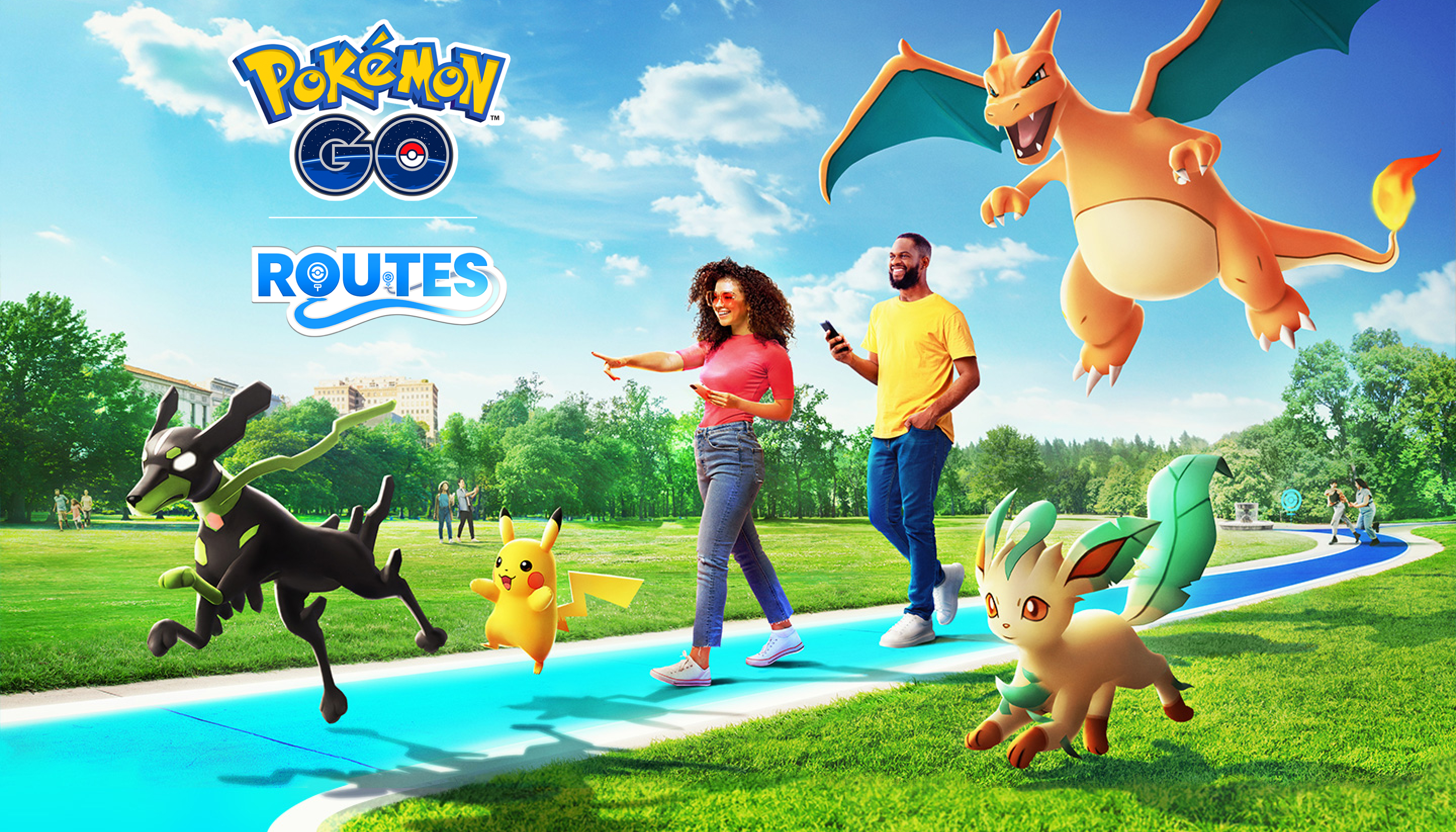
You have walked to the final PokéStop, but the Route still looks active. That can be normal: Pokémon GO asks you to finish it manually. Open the Route menu and look for Complete Route before walking away.
Start tracking at the blue flag
Open Nearby → Routes, choose a walk and tap Follow. Go to its blue start flag; tracking begins when you are close enough. If a route offers Reverse Direction, choose that before starting. These controls are described in the official Routes walkthrough.
For a first attempt, a short route you already know is easier to check than a long unfamiliar walk. Look at where it ends as well as how long it takes: a one-way route may leave you with a return trip.
A pause saves a location
Pause Route places a marker where you stopped. To resume, return to that location and use the Route control again. If you pause outside a shop, continuing from the next street will not move the marker along with you.
Plan breaks where returning is practical. If the path becomes inaccessible, there is little value in trying to force that walk to work; choose a different route for the next attempt.
At the end, open the menu
Tap Complete Route and confirm. Completion is manual so you can look for any Zygarde Cells before closing the walk. If it still will not finish, check whether you followed the marked path and recorded its full distance; reaching the endpoint by a shortcut may be insufficient.
Routes also need to form a continuous path, as explained in the Route requirements. On your next attempt, watch the colored progress line near the place tracking stopped. That tells you more than repeating the entire walk without checking the map.